The LG Content Store functions as the official application store for the webOS system, transforming the smart TV into a personalized entertainment hub. This platform simplifies finding streaming services, games, and other content through just a few commands on the remote control.
To download an application on an LG TV, the user must first access the store on the home screen and use the search function to find the desired service. After identifying the program, simply select the installation option, which automatically starts the download and setup process.
The process of adding an application to an LG Smart TV is done in a few steps within the webOS app store, allowing the television to be customized with preferred software and streaming services. To begin, turn on the LG TV and press the 'Home' button on the remote control to enter the main panel. Then, navigate to the 'Apps' menu to access the webOS LG Content Store.
Proceed by moving the cursor to the magnifying glass icon, located in the upper right corner of the screen. By clicking this icon, the LG Content Store search menu will open. Use the virtual keyboard to type the name of the application and confirm the search. The system will present the results, and then you must select the chosen application to proceed.
On the specific program page, select the 'Install' option to download the application onto the LG Smart TV. The download and configuration are executed automatically. Once the installation is complete, access the software by pressing the 'Start' button; the shortcut will remain fixed on the main bar for easy future access.
If an application is not available in the official LG TV store, common reasons include the webOS system version or geographical restrictions. Generally, resolving this issue can be done by adjusting the country in the settings or updating the smart TV software.
It is important to note that sideloading is not a viable option for installing apps on the LG TV, as the brand's system is closed to external files. Furthermore, using unofficial methods can put the device at risk of security issues and void the warranty.
Additionally, it is not possible to use the Play Store to download applications on the LG TV because the brand's models operate with the webOS system and the LG Content Store. Being a proprietary and restricted platform, it does not natively support applications made for Android.
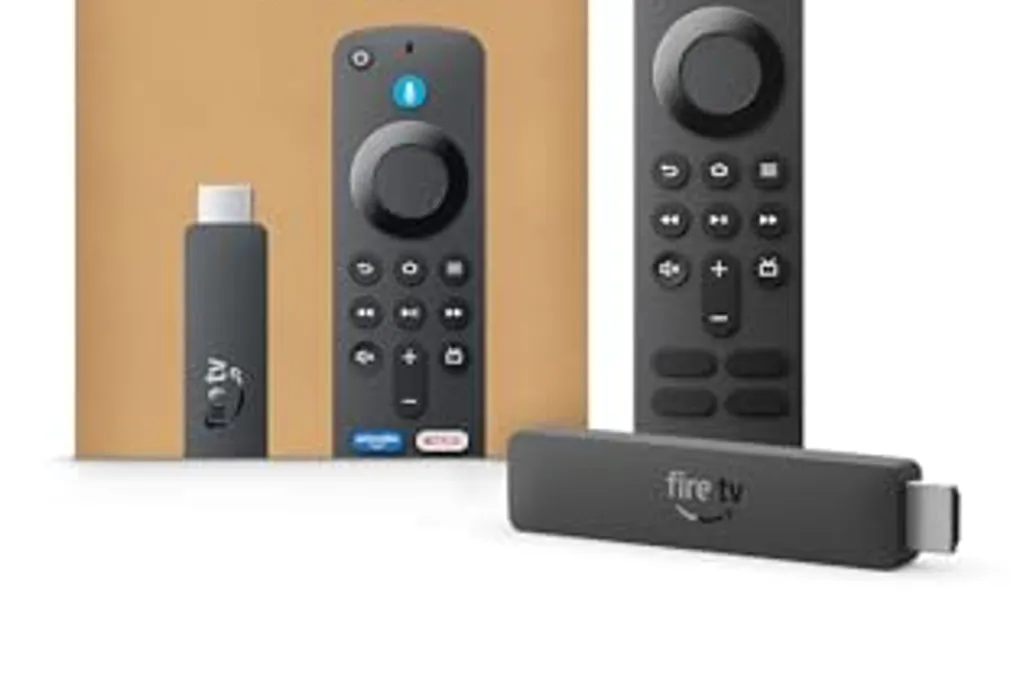
A simple solution to modernize an older LG Smart TV without support is to use an external streaming device. Simply connect this accessory to the HDMI port to refresh the television interface and allow access to current applications. Options such as Chromecast and Fire TV offer the possibility of downloading apps from their own stores or mirroring phone applications to the big screen, being a more economical alternative than replacing the device.
Finally, it is possible to remove applications from the LG TV directly from the system's home screen. This procedure helps free up internal storage space, and the program can be reinstalled from the official store when necessary. To uninstall, press the 'Home' button on the remote, select the list of applications, and confirm the deletion. It should be kept in mind that native factory software cannot be removed, and deleting the icon does not cancel subscriptions to paid services.